How to Create a Digital Memory Box Your Family Will Treasure
Learn how to sort, digitize, and organize family photos, videos, and notes into a lasting digital memory box that future generations can actually find and enjoy.
How to Create a Digital Memory Box Your Family Will Treasure
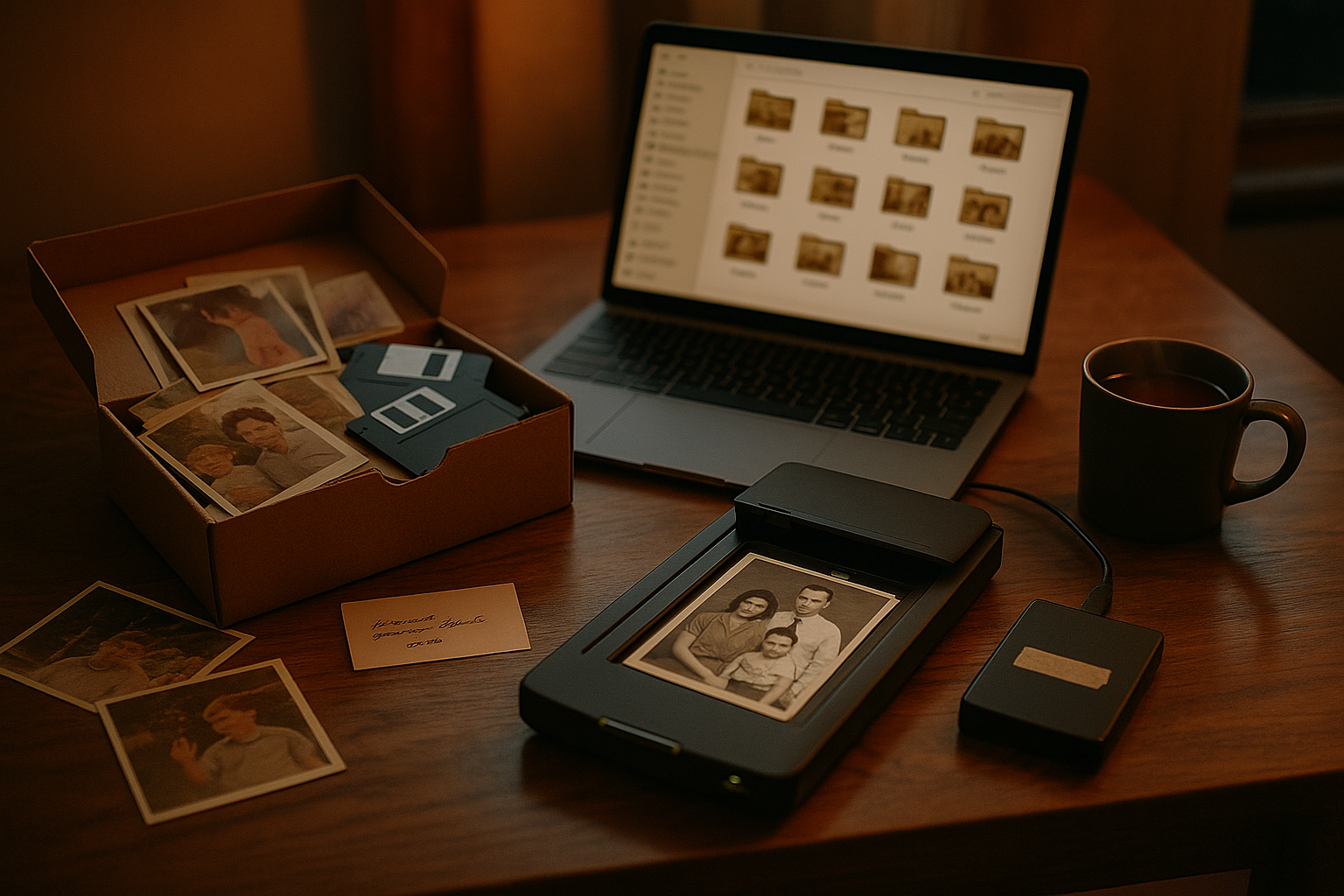
Every family has one: a shoebox, a closet shelf, or a tangle of old hard drives holding decades of photographs, home videos, and handwritten notes. The intention is always good — someday we'll organize it — but "someday" has a way of never arriving, and in the meantime, memories sit vulnerable to water damage, corrupted files, and outdated technology no one can play anymore. A digital memory box solves this by bringing everything into one organized, accessible place.
This kind of project is exactly what Voice After Life.com was built to support — helping families turn scattered photos, videos, and notes into something organized and lasting. Building a digital memory box isn't about becoming a professional archivist. It's about making deliberate, manageable choices so that the people you love can actually find and enjoy what you've preserved, decades from now.
Start With a Sort, Not a Scan
It's tempting to dive straight into scanning everything, but organizing experts consistently recommend sorting first. Making an initial first pass through your archive and going with your instincts creates a “yes” pile, “no” pile and “maybe” pile. The most important photos, like wedding portraits, are going to stand out immediately, but so will the ones you don't need, like a blurry landscape.
This step matters because duplicate images, blurry shots, or unwanted photos can bloat your storage, and organization helps eliminate the clutter. A little editing up front saves hours later and makes the final collection more meaningful — quality over quantity.
Build One Master Folder Structure
Once you've sorted, gather everything in a single place before organizing further. Start by collecting all digital and physical photo sources, then create a master folder structure on your primary computer or external hard drive and copy all files there.
There's no single "correct" way to organize from there, but consistency is what counts. Folder structure can depend entirely on the family, but it is better to have some structure than none. Many families organize by year and event ("2003 — Emma's Birthday") or by decade and person ("1990s — Grandma's Album"). Whatever system you choose, label folders clearly enough that a relative unfamiliar with your archive could still navigate it.
Don't Forget the Physical Originals
If you're digitizing printed photos, slides, or negatives, resist the urge to rush. Use a high-resolution scanner, ideally 600 dpi, and apps or dedicated scanning tools can make the process more efficient. Label each batch as you go — for example, labeling scanned folders based on the original album or approximate date, such as "Grandma Album - 1970s." Once photos are digitized, keep the originals rather than discarding them; prints and negatives still carry historical value that a scan alone can't fully replace.
Choose Formats Built to Last
Not all file formats age equally well. Every year, the Library of Congress publishes updated guidance on which formats are most likely to remain accessible over time. This Recommended Formats Statement identifies analog and digital formats suitable for the large-scale acquisition of and long-term access to library collections, selected to maximize preservation and accessibility of creative content into the future.
For video specifically, preservation standards continue to evolve — the Library of Congress recently upgraded FFV1 in a Matroska container to one of five preferred formats for the long-term preservation of video materials. You don't need to master archival science to benefit from this guidance; the practical takeaway is simple — when possible, save copies in widely supported, non-proprietary formats, and periodically check that older files still open correctly on current devices.
Protect It With the 3-2-1 Rule
Organizing your memory box is only half the job — protecting it from loss is the other half. A widely used standard among photographers and archivists is the 3-2-1 backup rule. This method was popularized by photographer and author Peter Krogh and has been widely adopted by IT professionals, archivists, and digital preservation experts. It's designed to create multiple layers of protection for your digital files by keeping at least three copies of your data, so that even if one fails, you have two more backups.
In practice, this might mean an external hard drive, a cloud backup, and a copy stored somewhere physically separate — a physical copy, a digital copy stored on a hard drive, and a copy stored in a different physical location so it's protected if something happens to your home. Set a recurring reminder to update these backups; a digital memory box is only as good as its most recent copy.
Add Context Notes Alongside the Images
A photo without context is a puzzle for future generations. Alongside your digitized photos and videos, include short written notes: names, dates, locations, and the small stories that don't show up in the image itself — who's laughing off-camera, what the occasion was, why that random staircase mattered. These details are often what turn a folder of pictures into a family history worth returning to. This is also where voice recordings and video messages can add something a photo alone cannot: a loved one's own explanation, in their own words, of what a memory meant to them and why it was worth keeping. Preserving that context — not just the image, but the story and the voice behind it — is part of what makes a resource like our platform's approach to preserving voices and memories meaningful for families building a lasting archive.
Think Ahead: Who Will Access This Later?
Organizing a digital memory box naturally raises a bigger question: who can access it, and how, if something happens to you? This overlaps with digital estate planning, a topic that increasingly comes up alongside traditional wills. Laws in many states, including versions of the Revised Uniform Fiduciary Access to Digital Assets Act, address this directly. In California, for example, the Revised Uniform Fiduciary Access to Digital Assets Act provides a framework for managing digital assets after death or incapacitation, allowing residents to specify how their digital assets should be handled in wills, trusts, or power of attorney agreements.
Many major platforms now offer built-in tools for this exact purpose. If a platform offers a tool to designate what happens to an account after death, such as Google's Inactive Account Manager or Facebook's Legacy Contact, and that tool is used, those choices take priority over a will, a trust, and the platform's own terms of service. Yet awareness remains low — a 2026 Carnegie Mellon University study presented at the ACM Conference on Human Factors in Computing Systems found that almost none of the older adults surveyed had heard of these platform-specific tools. Reviewing these settings for your own major accounts, and discussing your wishes with family or an estate planning professional, is a natural next step once your digital memory box is built.
A Project Worth Doing Well
A digital memory box isn't a weekend project finished all at once — it's an ongoing practice of sorting, labeling, backing up, and occasionally revisiting what you've saved. Done thoughtfully, it becomes something far more valuable than a folder of files: a searchable, protected, and genuinely usable record of a family's story, ready for whoever comes looking for it next.
- Voice After Life.com
Sources
- At Home Organizing Hacks for Family Photos & Videos — EverPresent
- Organizing Family Photo Archives: Tips & Best Practices — Duplicate Photo Cleaner
- Recommended Formats Statement — Library of Congress
- Embracing FFV1 in Matroska Container as a Preferred Format — Library of Congress, The Signal blog
- 3-2-1 Backup Rule: Keeping Your Digital Files Safe for the Long Haul — Permanent.org
- How I Digitized, Organized, and Backed Up Thousands of Family Photos and Videos — Jest Kept Secret
- Digital Estate Planning Guide — Guideway Legal
- Digital Estate Planning: What Happens to Your Online Accounts, Passwords, and Digital Assets When You Die — Davenport & Associates